Compatibility: WordPress 6.0 and later, PHP 7.4 and later
Free, included in every plan. Download optooki-wordpress.zip
Before you start
Create the site in the Optooki dashboard, set up the banner and publish it: the plugin shows the latest published version. The getting started guide covers it in five minutes.
Installation
-
Upload the archive
In the administration: Plugins → Add New, then Upload Plugin (marker 1). Choose
optooki-wordpress.zip(marker 2), click Install Now, then Activate.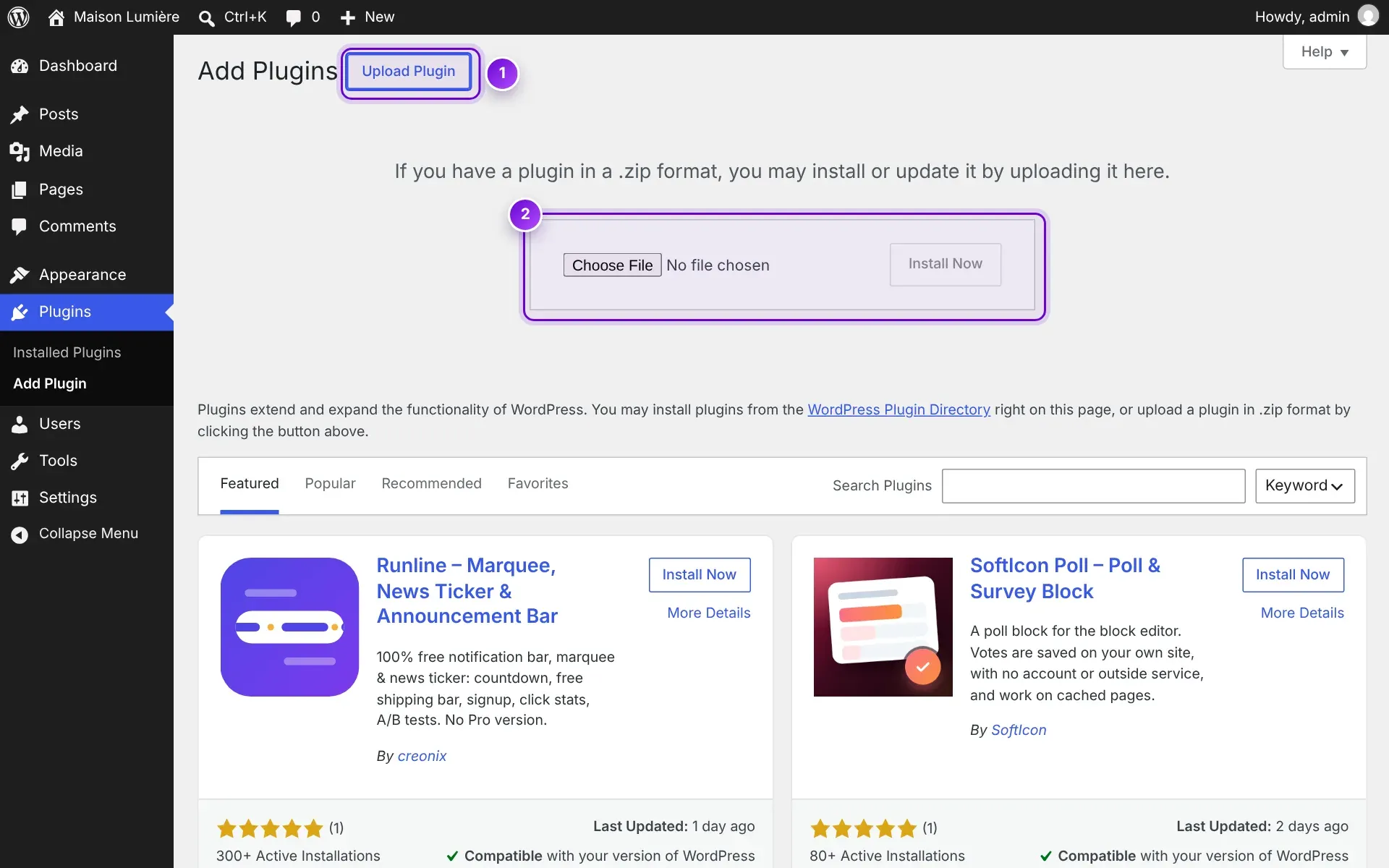
-
Connect the site to Optooki
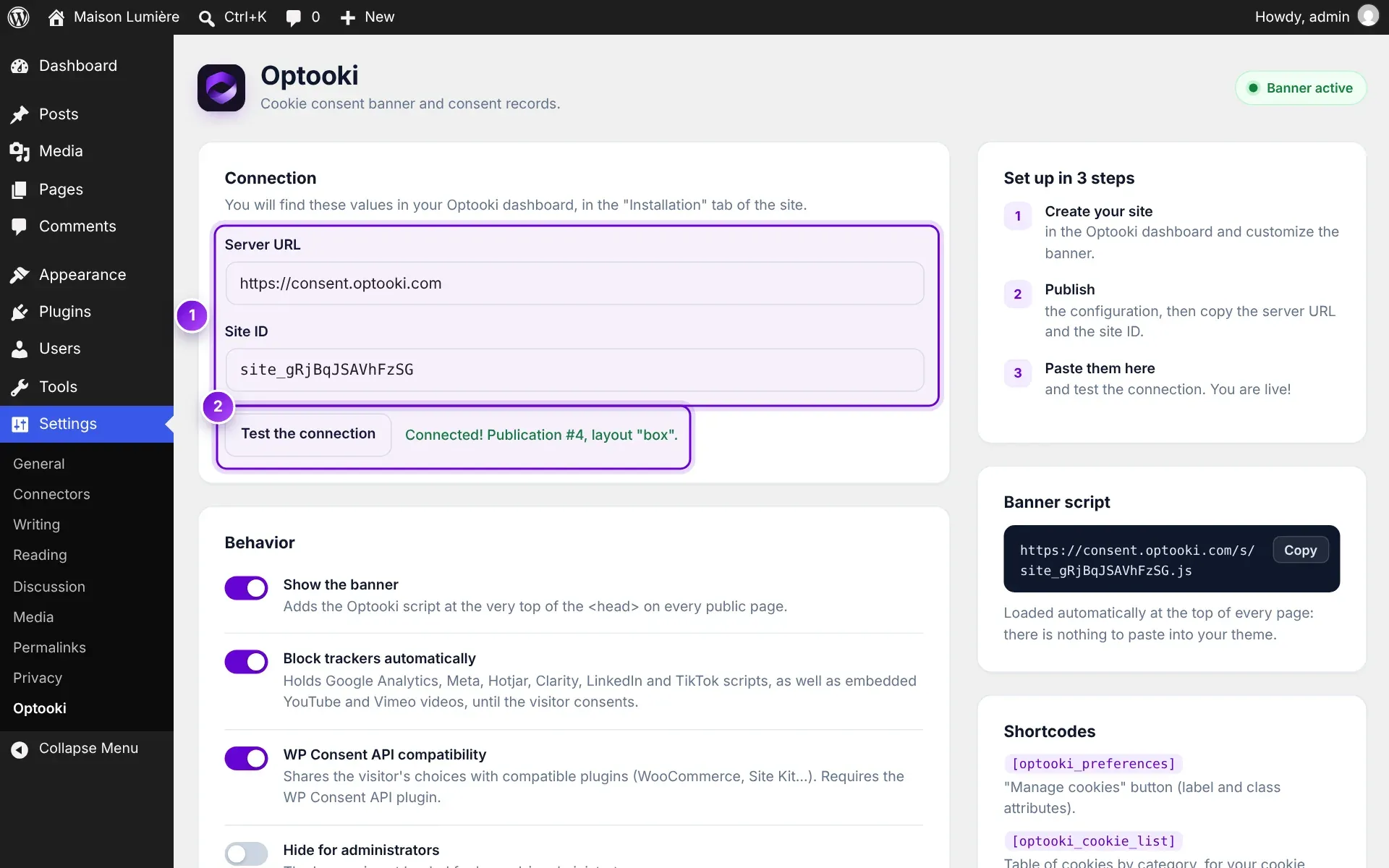
Paste the server URL and the site ID, found in the Installation tab of the Optooki dashboard (marker 1). Save, then click Test the connection (marker 2): “Connected!” confirms that the banner is published and that the plugin finds it.
-
Check on the site
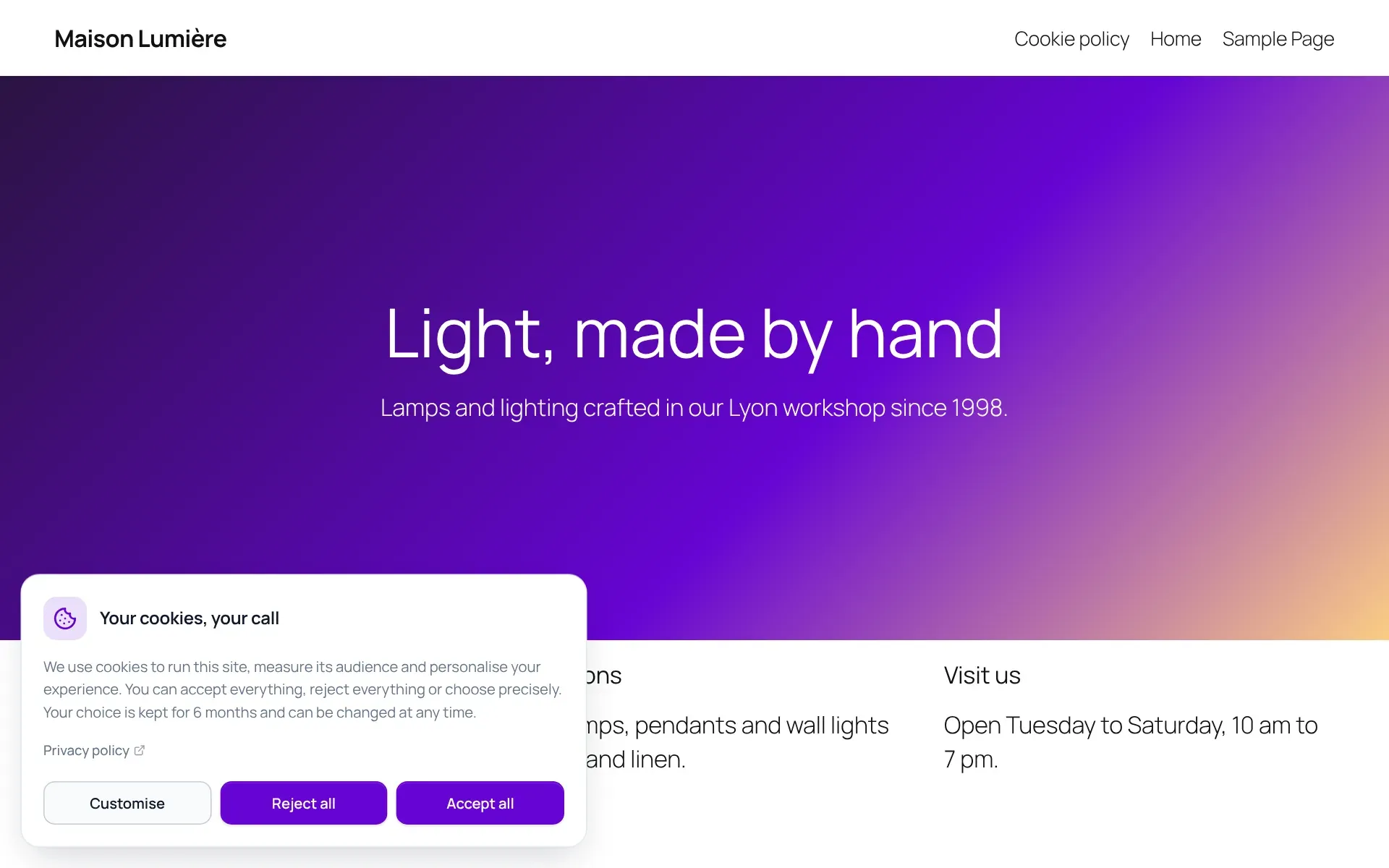
Open your site in a private window: the banner appears. If it does not, see troubleshooting.
What the plugin does
- The banner first in the
<head>of every public page, before any other script, never in the administration. - Google Analytics, Meta, Hotjar, Microsoft Clarity, LinkedIn and TikTok held until consent, even when added by another extension or by the theme. Can be turned off.
- YouTube and Vimeo videos in your content replaced by a placeholder until consent.
- WP Consent API: the visitor’s choice is passed on to compatible plugins (WooCommerce, Site Kit…). Can be turned off.
- Suggested text for your privacy policy, in Settings → Privacy.
- Option to hide the banner from logged-in administrators.
Button and cookie list
In a page or a post, write [optooki_preferences] for a “Manage cookies” button (attributes label and class), and [optooki_cookie_list] on your cookie policy for the table of cookies, up to date with every publication. A menu link to #optooki also reopens the preferences.
Holding another script
A script added by your theme or by a plugin that Optooki does not know can be held with the optooki_blocked_scripts filter, or by hand with type="text/plain" and data-cm-category (see Block trackers).
Caching plugins
Exclude the Optooki script from options that defer, delay or combine JavaScript (WP Rocket, LiteSpeed Cache, Autoptimize…): it must remain the first script of the page.
Update, uninstall
For a new version, upload the new archive the same way: WordPress offers to replace the old one. Updates are free, on every plan. Uninstalling (Plugins → Deactivate → Delete) removes the plugin and its settings.
In the same section : Install
- Any website One line to paste at the top of every page, for a site without a CMS.
- PrestaShop Module for PrestaShop 1.7, 8 and 9.
- Magento Module for Magento Open Source and Adobe Commerce 2.4.
- Joomla System plugin for Joomla 4.4, 5 and 6.
- Drupal Module for Drupal 10.3 and later, and Drupal 11.
- Contao A single package for Contao 4.4 to 6.
- Shopify App connected to Shopify’s Customer Privacy API.
- Wix App connected to Wix’s consent policy.
- Squarespace One line to paste into the site’s code injection.
- Webflow One line to paste into the site’s custom code.
- Google Tag Manager Consent Mode v2, the optooki_consent trigger and the Optooki tag template.